How do I save a good moment?
On the Home screen, type your good moment into the journal box and tap Save my good moment. Your moment is added to your Star Jar.
One Good Moment
Need a hand with One Good Moment? Here are answers to common questions and a simple way to get in touch if you need more help.
Inside the app
This is the main Home screen referred to in the help answers below. From here you can save a good moment, view your Star Jar, open a random star and see your retirement countdown.
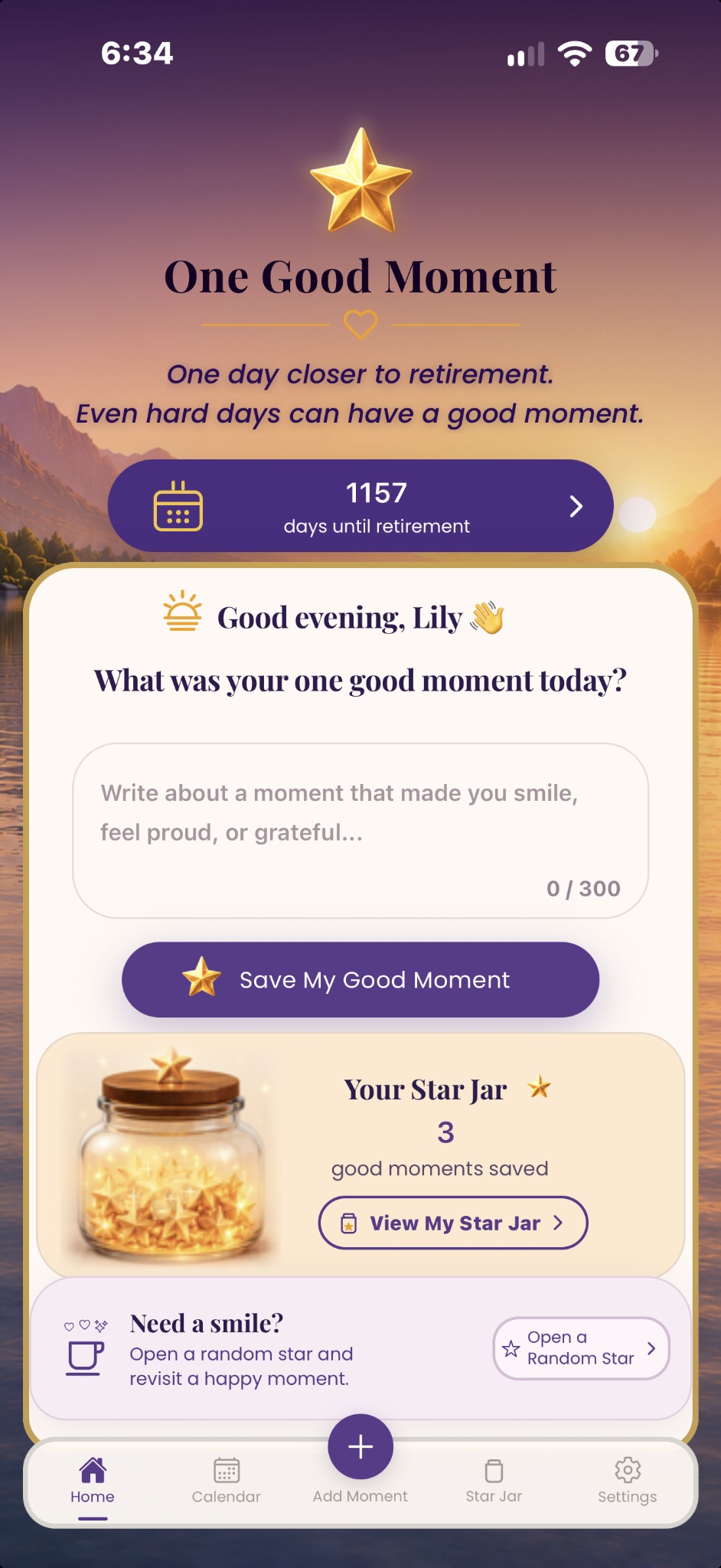
On the Home screen, type your good moment into the journal box and tap Save my good moment. Your moment is added to your Star Jar.
Open My Star Jar to view your saved memories. You can also use the Calendar to look back at moments saved on particular dates.
It brings back one of your previously saved good moments at random — a simple way to revisit something positive from the past.
Use the retirement date option on the Home screen or open Settings and choose Change retirement date. Your countdown will update automatically.
Yes. You can save multiple good moments on the same day and they will all remain in your Star Jar.
Yes. Open your saved memories and use the delete/trash option on the memory you want to remove.
Open Settings and check that your retirement date is correct. If you change the date, the countdown will update to match it.
Using the clear or reset options in Settings can remove saved app information. Only use those options if you are sure you no longer need the saved data.
Email us at TheRetirementChapter@outlook.com
Please include a short description of what happened and which device you are using (for example, iPhone or iPad).
One Good Moment is created by The Retirement Chapter.